

Registration in the System
Using Contractors.es is possible after creating an account in the system by an administrator or company owner. This process begins with filling in basic information in the steps of a simple configuration process, the detailed description of which is available here. Registration in the system is a quick start that will take the user literally a moment.
REMEMBER: Contractors.es is an advanced system, dedicated primarily to facilitating control and supervision over processes related to project implementation in your company.
Account Creation
Section titled “Account Creation”-
Go to the yellow registration field on the page https://contractors.es/ and use the link available there to create an account in Contractors.es.

-
Fill in the registration form by providing the necessary basic information.
NOTE: The Discount Code field applies only to current promotional campaigns.
-
After filling out the form, accept the terms and conditions and the privacy policy, and then confirm the creation of the account by clicking the button:

-
You will receive a return message to the email address provided during registration confirming the creation of the account and the generated password for the first login.
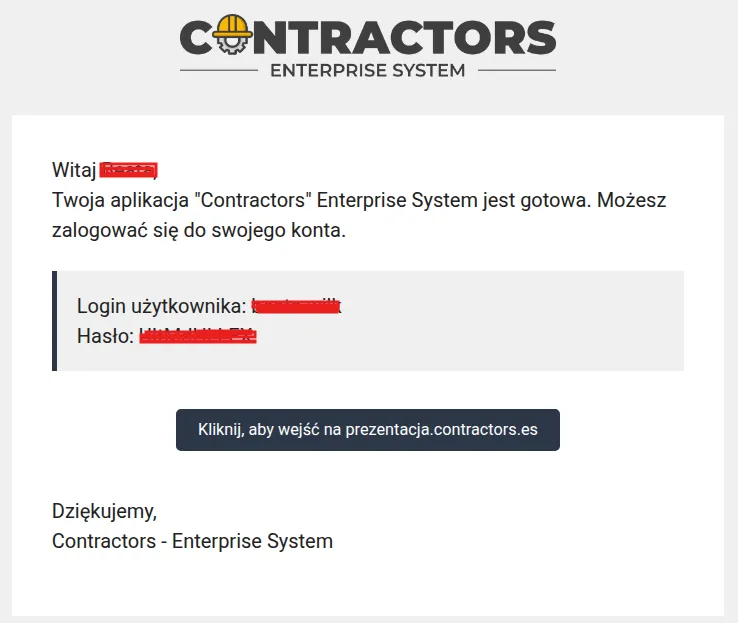
REMEMBER: At the time of the first login, you will be redirected to a simplified system configuration, the filling scheme of which has been described here.
NOTE: After creating an account, your company will receive a unique access address to company data in the Contractors.es system, e.g., https://your-company.contractors.es/app/auth/login. The “your-company” part is the unique company name created during registration.
REMEMBER: All users of your company log into the system under the same address, using their own logins and passwords.
Password Change
Section titled “Password Change”-
After completing the system configuration process (section: First Steps with the System), go to the user icon in the upper right corner of the screen.
-
Select the “Settings” tab.
-
Fill in all the required fields in the form.
NOTE: In the “Old Password” field, enter the password received in the email during registration.
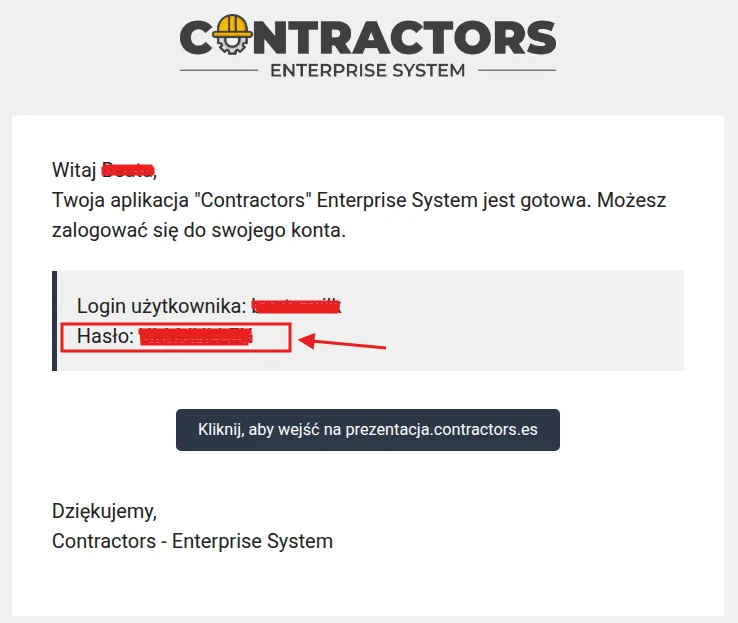
- Enter a new password for logging in and choose preferences for two-step verification.
NOTE: Two-factor authentication enhances account security by requiring additional verification. Once set up, it requires entering a one-time password from an app on your phone or computer.
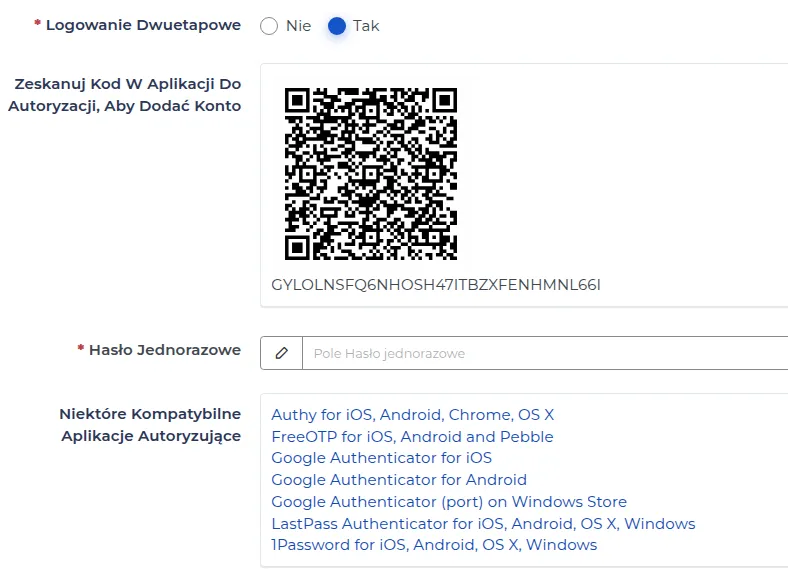
- Optionally, configure two-factor authentication with the option to avoid asking for a one-time password when logging in from your own computer.
- Enter a description of the API token, which will allow you to easily recognize its purpose.

REMEMBER: The API token enables secure communication with the Contractors.es system through the API interface. It is only required when using external integrations.
NOTE: The API token provides access to data according to the permissions of the user who created it. It should not be shared with unauthorized persons. A token that is not used for 90 days expires automatically.
- Click “Confirm” to save the changes.
Example: Application of the API token.
A company uses Contractors.es and wants to connect the system with an external reporting tool.
NOTE: The example concerns integration with an external tool. The API token itself is not used for daily user login.
To configure automatic downloading of data from Contractors.es to the reporting program, proceed as follows:
-
Go to user settings and create a new API token.
-
In the “Description” field, enter a name that will allow you to recognize its purpose, e.g., “Financial Reports”.
-
Copy the token generated by the system and save it in a safe place.
-
Go to the configuration of the external program that is to download data from Contractors.es.
-
In the integration settings, enter the copied API token in the “Token”, “API Key” or “Access Key” field (the name of the field depends on the program used), and then save the configuration.
Example application in the company
A company wants to analyze the costs of ongoing construction projects daily in a single report. Instead of manually exporting data from Contractors.es, the administrator configures a connection with the reporting tool. The API token enables automatic retrieval of current information from the system.
Password Recovery
Section titled “Password Recovery”If you forget your password, use the reset option.
-
Open the page: https://prezentacja.contractors.es/app/auth/login
-
Click the “Password reset form” button.
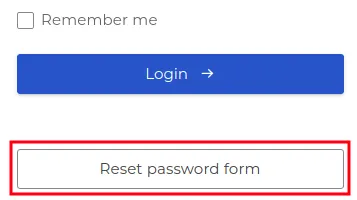
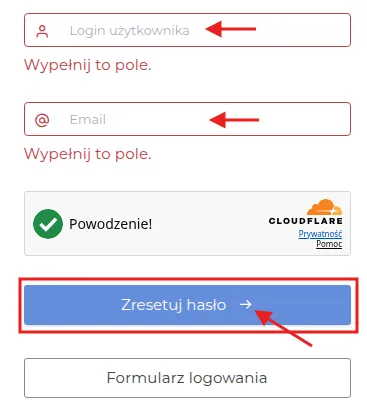
- Enter your login and email address, and then click the “Reset password” button.
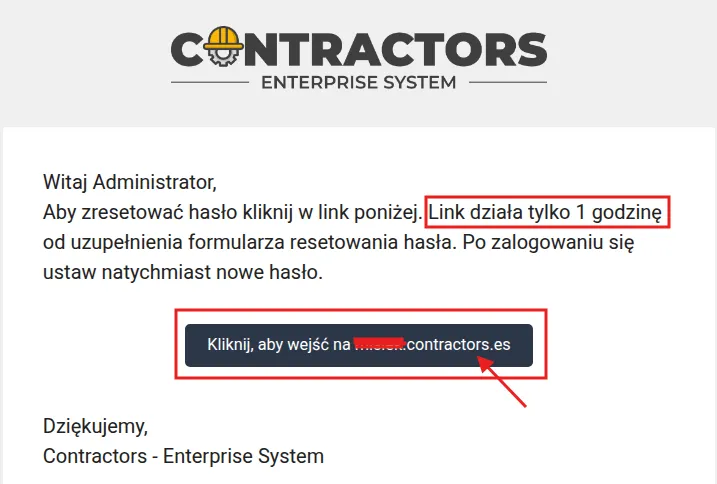
- An email with a link to reset the password will be sent to the email address associated with the user account.
- Once sent, the system will display the message shown below on the dashboard.

- After clicking the password reset link, automatic login to the system will occur. Then, the “User Settings” panel will be displayed on the dashboard, where you should set a new password and save the changes.
REMEMBER: After resetting your password, immediately set a new one.
NOTE: The reset link is only active for one hour. After that time, you will need to use the password reset function again.