

Employee Work Organization
In the meetings, phone calls, and tasks section, you will find lists of records that are displayed on the calendar. Using the action buttons, you can preview, change, or delete the selected entry from the list. In the record preview, standard tabs are visible that are available in different types of records where you can use auxiliary buttons, described in more detail here. In each section, you have the option to use different list filtering options, which you can learn more about here.
NOTE: When you enter a contact, you can go to the “Activities” tab, where you can view all records related to that person.
Meetings
Section titled “Meetings”The list of records displays entries regarding upcoming meetings.
Using the “New” button located above the list of records, you can add a new meeting.
Fill in the form fields, the meaning of which is as follows:
-
Title: Name of the meeting being created.
-
Type: The event can be all-day or with a specified duration.
-
Start: Select the date and time for the planned event in the calendar.
-
Duration: Specify the amount of time that is planned.
-
Priority: How important the meeting is and what priority it has, e.g., low, medium, high.
REMEMBER: Setting a priority for a meeting will affect the appearance of the entry in the “CRM -> Meetings” menu list. Meetings with the highest priority will be highlighted in red, medium in light red, and those with low priority will have the standard color (white).
- Employees: An optional choice from the list of employees who will be delegated to the meeting.
REMEMBER: To quickly find an employee on the list, enter the next letters of their surname or name in the “Filter” field. The displayed list will be automatically limited to the entered value.
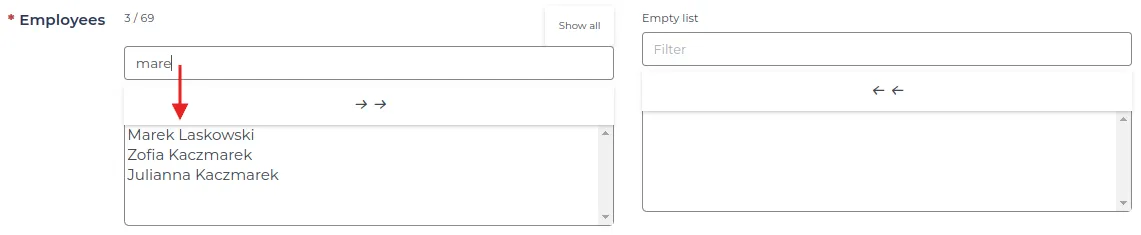
NOTE: The system allows you to plan a meeting for persons from a selected group, e.g., “Estimator”. In the “Employees” field, enter the group name - a list of assigned persons will be displayed. You can select all using the arrows or only selected persons.
REMEMBER: If the employee does not have permissions to the CRM module, they can be selected as a participant, but will not receive a notification - they will only be visible on the meeting list. The system also allows adding persons without an account or without full permissions to the given record.

-
Other contacts: Option to add persons from the contact list related to the meeting, e.g., investor or subcontractor.
-
Project stage: Association of the meeting with a selected project stage, e.g.
-
Not applicable - meeting not related to any project.
-
Bidding - estimate and arrangements stage.
-
Awarded project or in progress - current execution matters or preparations for starting work.
-
-
Book a meeting room: Optional selection of a meeting room registered in the system.
-
Description: Purpose of the meeting and its course.
-
Permissions: Access to the calendar entry being created, e.g., public, public read-only, and private. You can find more about permissions here.
-
Recurring: Define the time interval and recurrence of entering events, where the time interval is the amount of time between entries, and recurrence determines whether the event is to be repeated and in what scheme.

NOTE: In the case of recurring events, it is possible to specify the end date of their occurrence. Events will be entered into the calendar until the given date. Without entering an end date for the cycle, the system will continue to repeat events indefinitely.
REMEMBER: If the meeting is to involve all employees from the list, use the arrow symbols that allow you to move the entire list in one direction or the other. Clicking on an employee with the cursor will only mark them for participation in the meeting.
REMEMBER: Deleted records go to the “Trash,” from where only an administrator can restore them to their original place of deletion.
Phones
Section titled “Phones”This section presents a list of uncompleted phone calls.
Using the “New” button located above the list of records, you have the option to add a new phone call.
-
Subject: The subject of the phone call.
-
Call to: The entity the phone call concerns.
NOTE: If a contact or company exists in the system and has a contact number entered, it will be immediately visible in the “Contact Number” field.
REMEMBER: In the “Other” field, you can enter values manually without adding the contact/company to the database.
- Responsible employees: Optionally select from the list of employees who will be assigned the newly created phone call on the calendar.
REMEMBER: On the list, you can search for an employee by typing successive letters of their name, or display all persons assigned to one group, e.g., Estimator.
-
Type: The term of the phone call, with or without an hour.
-
Project stage: association of the phone call with a selected project stage:
- Not applicable - call not related to a project.
- Bidding - concerns the estimate and arrangements stage.
- Awarded project or in progress - current execution matters or preparations for starting work.
-
Description: Brief information about the course of the call.
-
Status: Stage of the phone call - from start to completion of arrangements.
-
Priority: How important the task is and what priority it has, e.g., low, medium, high.
-
Permissions: Access to the calendar entry being created, e.g., public, public read-only, and private. You can find more about permissions here.
REMEMBER: If the phone call is to be conducted by another system user, select them from the list in the “Employees” field.
For the phone call, you can determine its current status by proceeding in the following order:
- Select the record with the phone call in which you want to change the status and click on the name indicating its current state.

-
Complete the form, in which the meaning of the fields is as follows:
- New status: Choose the status from the available options.
-
Create a new event as a continuation: Determines whether the phone call is to be continued in the future or not.
- Choosing the option “No” - the phone call will not be continued in the future.
- Choosing the option “Yes” - will create a new record in the system, which can be customized as a meeting, task, project visit, or left as a phone call.
- Save the entered data with the “Confirm” button.
NOTE: When choosing to continue, another form will appear on the screen to be filled out where you can change its title. After saving it, the record will receive the prefix “Continuation” in its name.

REMEMBER: Changing the status to “Closed” or “Cancelled” will stop displaying it on the list of records with active phone calls.
In this section of the system, there are entries with unfinished tasks.
Using the “New” button located above the list of records, you have the option to add a new task.
-
Title: The name of the task.
-
Type of deadline: The method of specifying the deadline for the task being created.
-
Status: The task can have various statuses that inform about its progress or completion.
-
Priority: How important the task is and what priority it has, e.g., low, medium, high.
-
Responsible employees: Optional selection from the list of employees who will be delegated to the task along with you.
REMEMBER: For the selected employee on the list, the task will be automatically entered into his calendar.
-
Project stage: Association of the task with a selected project stage, e.g.
- Not applicable - task not related to a project.
- Bidding - estimate and arrangements stage.
- Awarded project or in progress - current execution matters or preparations for starting work.
-
Other contacts: Option to add persons from the contact list related to the task, e.g., investor or subcontractor.
-
Description: Information for the planned task.
-
Permissions: Access to the created calendar entry, e.g., public, public read-only, and private. You can find more about permissions here.
REMEMBER: In the “Employees” field, add employees from the list by clicking on their names with the cursor if they are to participate in the task being created.
REMEMBER: The list of employees can be filtered by name or group, by typing initial letters and then selecting an entry from the list.
NOTE: To change the status of a task, proceed in the same way as described in the status change section in “Phones”, which is available above.
REMEMBER: Changing the status to “Closed” or “Cancelled” will stop displaying it on the list of records with active tasks.
REMEMBER: Setting a priority for a task will affect the appearance of the entry in the list with records. Tasks with the highest priority will be highlighted in red, medium in light red, and those with low priority will have the standard color (white).